Add a Default Signature in Classic Outlook

To add a default signature in classic Outlook, you can
follow these steps:
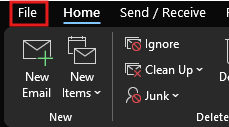
Open
Outlook and go to the File menu.
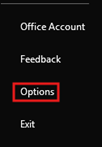
Select Options,
near the bottom left of the Outlook screen.
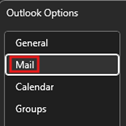
In the
Outlook Options window, click on Mail.
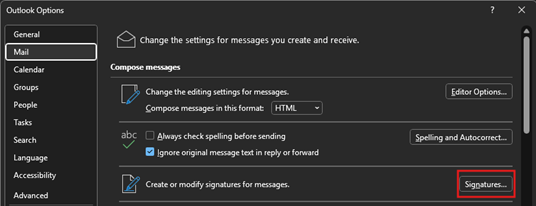
Click
on the Signatures... button.
In the
Signatures and Stationery dialog, click on New to create
a new signature.

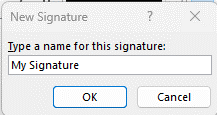
Enter
a name for your signature and click OK.
In the
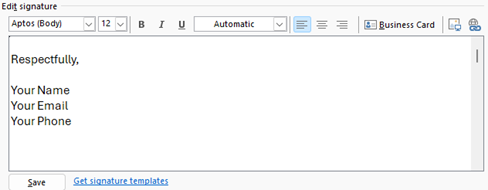
editing area, type your signature text and format it as desired (you can
include images, links, etc.). For example:
Set
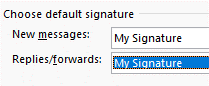
your new signature as the default for new messages and/or replies/forwards
by selecting it from the dropdown menus.
Click OK to
save your changes.
Close
the Options window.
Your default signature should now be added to your emails in
classic Outlook